
How to download APK files on Linux using browsers, Android tools, and command-line utilities. Follow this step-by-step guide from AndroidPorts.com.
Linux is well-known for being stable, secure, and flexible. Most people don’t use it for managing Android apps, but actually, it works pretty well. If you want to grab APK files—maybe for testing, sending to your Android device, or just making a backup—Linux has a bunch of tools to make it easy.
Let’s break it down. This guide from AndroidPorts.com will cover how APK files actually work, different ways to get them on Linux, and how to keep your phone safe while you do it.
What’s an APK?
APK means Android Package Kit—it’s the file that Android uses to install apps. An APK usually holds all the pieces an app needs to run: code, images, resources, configuration files, a digital signature, and a manifest file. When you sideload an app (meaning, you install it outside the Play Store), you’re using an APK.
Why Would You Download APKs on Linux?
You might want APK files for a few reasons, all legit:
– Testing apps you’re working on or planning to use
– Installing your favorite apps on more than one device
– Backing up apps you already have
– Checking app files for development or security research
– Moving apps to your Android device without redownloading them
Just make sure you have permission to use or share the APK.
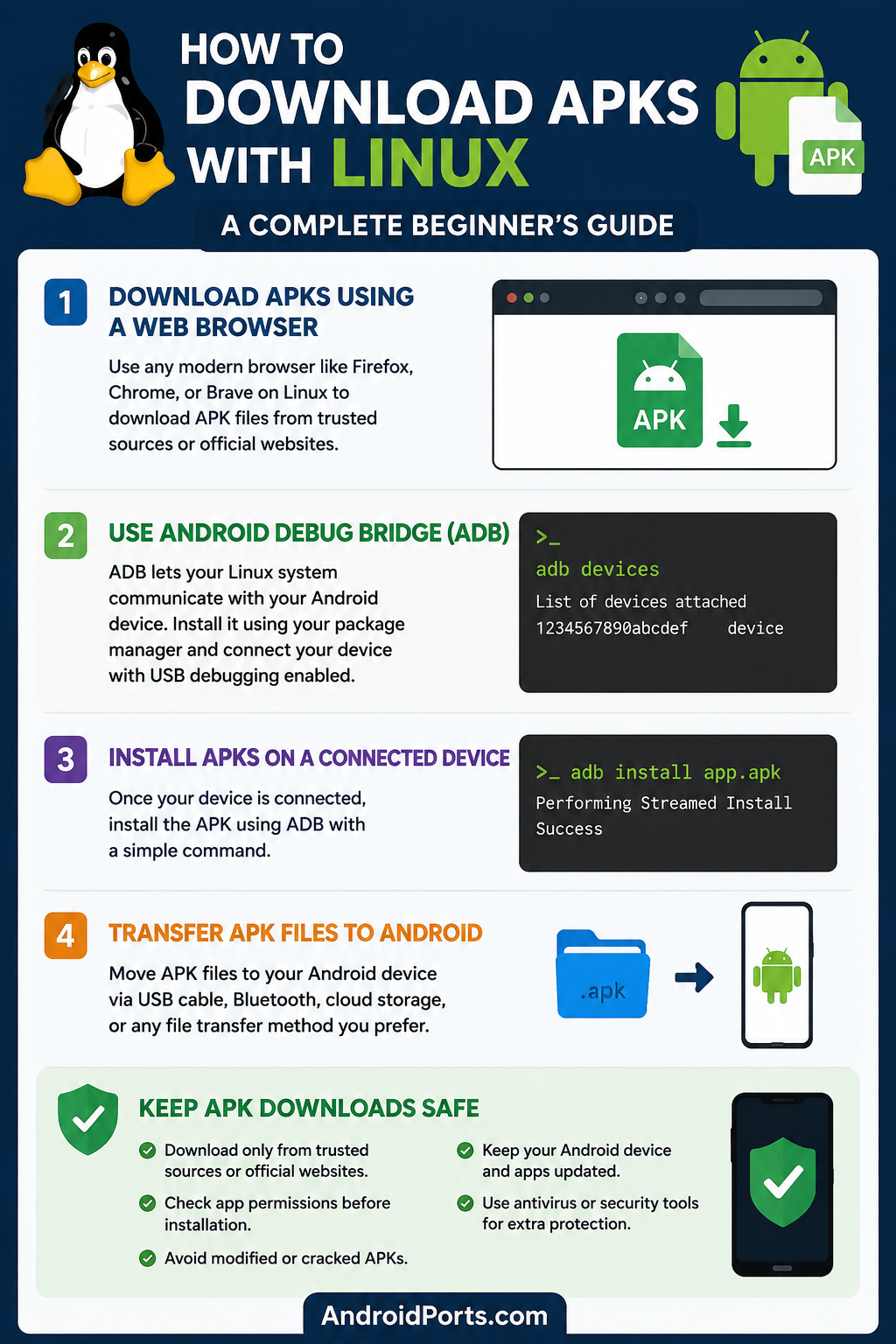
How to Download APKs on Linux
Method 1: Using a Web Browser
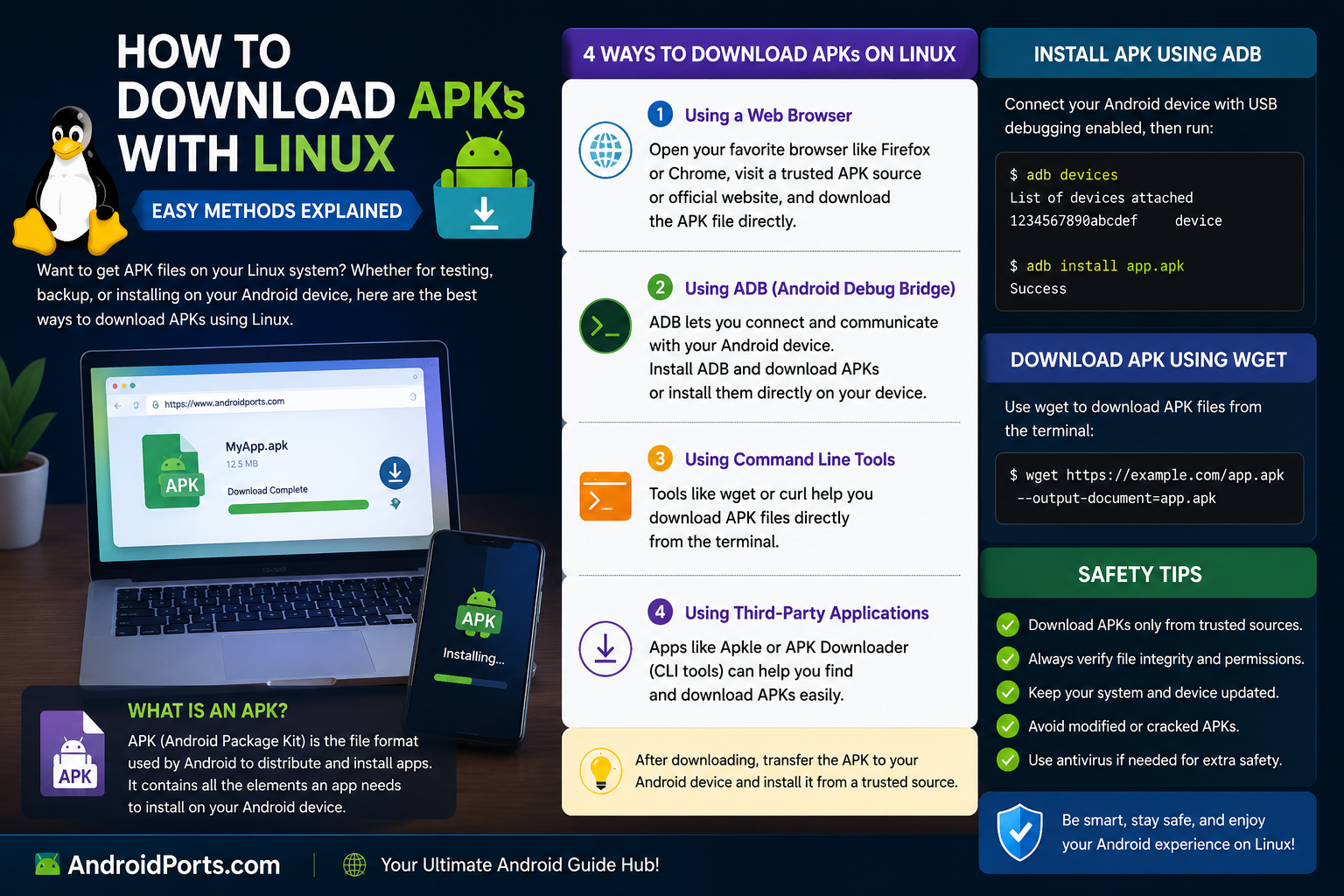
This is the simplest way—just download the APK through any modern browser on your Linux system. Firefox, Chrome, Chromium, Brave, and Edge all get the job done. Once you have the APK, transfer it to your phone using a USB cable, Bluetooth, or upload it to your cloud storage.
Method 2: Using Android Debug Bridge (ADB)
If your Android phone is plugged into your computer, ADB is your best friend. It lets your Linux machine talk directly to your Android device.
To get started:
On Ubuntu or Debian, type:
sudo apt update
sudo apt install adb
On Fedora:
sudo dnf install android-tools
Check if ADB is installed:
adb version
Connect your phone (make sure USB debugging is on), then run:
adb devices
Now you’re connected and ready for more advanced tasks and app installs.
Method 3: Install APK Right from Linux
If you’ve already got the APK on your computer, install it on your phone with:
adb install app.apk
Replace “app.apk” with your actual APK file’s name. This is handy for app developers or anyone who gets APKs straight from a trusted dev.
Method 4: Transfer APK Files to Android
You can move APKs to your phone with a USB cable, Bluetooth, Nearby Share (if you’ve got it), cloud drives like Google Drive or Dropbox, or old-fashioned external storage. Open the APK on your device, and if your phone allows installs from that location, just follow the prompts.
Keeping Your Device Safe
Let’s be real: not every APK you find online is safe. These simple tips help protect your device:
– Only download from official sites or well-known sources like Androidports.com
– Double-check the app version—make sure it matches what the developer put out.
– Keep your phone’s operating system updated.
– Avoid APKs that offer paid features for free or weirdly modified options.
– Always check the permissions before installing anything.
Good habits now save you headaches later.
Why Linux Is Great for Android App Management
Linux shines when it comes to development and app management:
– Tons of development tools are already in the package manager—no hunting online.
– The terminal is powerful. Testing, debugging, and device management are fast.
– It works on older hardware, so you don’t need a brand-new computer.
– Linux’s permission and security features help you manage files and tools safely.
Common Issues
Device Not Detected
Make sure you’ve enabled USB debugging on your phone and you’re using a real data cable (not just a charging one). Then check with:
adb devices
Installation Blocked
Sometimes you have to allow installs from unknown sources—your phone will usually prompt you, or you can open the file with a file manager and follow the instructions.
Corrupted APK
If the APK won’t install, download a fresh copy from a trusted site—maybe something went wrong the first time.
Tips for Linux Users
– Keep your ADB tools up-to-date.
– Name and organize APKs so you know what’s what.
– Store your backups somewhere safe—like an external drive or cloud.
– Use version numbers when you save APKs.
– Delete old APKs you don’t need anymore to free up space.
Conclusion
Linux is a great environment for managing Android apps. Whether you’re a developer, a tinkerer, or just like to try things yourself, tools like ADB and a decent browser make downloading, transferring, and keeping track of APKs pretty simple.
Just remember: always get your apps from places you trust. Check your permissions and stay smart—your data and devices will thank you.
For more helpful guides, Linux tricks, app walkthroughs, and the latest news, visit AndroidPorts.com.
Frequently Asked Questions
1. Can I download APK files using Linux?
Sure. Just open your browser or use ADB—Linux supports both.
2. What’s ADB?
Android Debug Bridge (ADB) is a tool for your computer to manage, debug, and install stuff on your Android device.
3. Do all Linux distros support ADB?
Pretty much—Ubuntu, Debian, Fedora, Arch Linux, Linux Mint, openSUSE. They all have it in their package managers.
4. Can I install APKs from Linux?
Yes, as long as your phone is connected and you’ve enabled USB debugging.
5. Is downloading APKs from Linux safe?
Yes, as long as you stick to reputable sources and check file integrity.
6. Do I need root on Linux?
Nope. You can download and use ADB without root once you install what you need.
7. Can ADB work with more than one Android device?
Yes, developers use it all the time for multiple phones or tablets.
8. Does Linux support Android app development?
Definitely. Linux is a top choice, supporting Android Studio, ADB, Gradle, Java, and more.
9. Which browser is best for APK downloads on Linux?
Firefox, Chrome, Chromium, Brave, Edge—it’s your call.
10. Where can I find more Android tutorials?
Just head over to AndroidPorts.com for tons of guides, tips, and tech news.
Leave a Comment