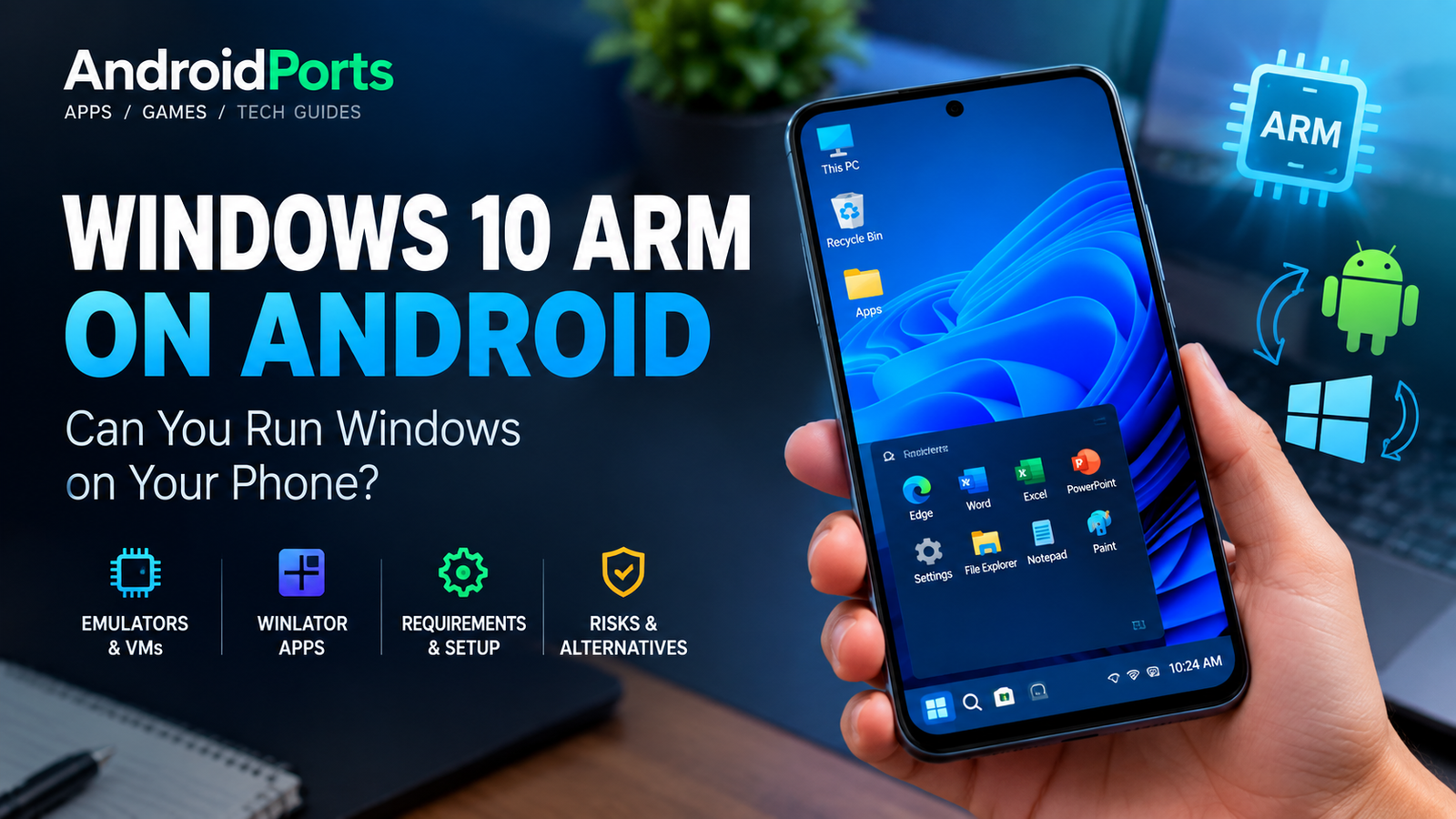
Windows 10 ARM on Android: How to Run Windows on an Android Phone
Can you run Windows 10 ARM on an Android phone? Yeah, it’s possible—but way more complicated than just grabbing a normal APK and tapping “install”.
Most modern Android devices run on ARM processors, while Windows was built around x86 and x64 CPUs. But Microsoft eventually released an ARM version of Windows, which made hackers and tinkerers wonder, “Could my phone be a pocket-sized Windows PC?”
Here’s the situation in 2026: There isn’t just one way to try it, and which path you pick depends on your phone and how comfortable you are getting your hands dirty. You can run Windows in a virtual machine, use a compatibility layer like Winlator to just run Windows apps, or go all out and try one of those experimental native boot projects floating around in the community.
But those methods aren’t all the same—not even close.
Microsoft does support Windows on ARM for proper PCs, but it doesn’t give you an official way to stick Windows 10 on a typical Android phone.
This guide from AndroidPorts cuts through the marketing and hype. Here’s what actually works, what doesn’t, and what you need to know before you start.
So, does Windows 10 ARM even run on Android?
Technically, sometimes. It all comes down to what’s inside your phone: processor, bootloader, firmware, drivers, and if there’s any community work out there for your device.
There’s no magical installer that turns every Galaxy, Pixel, Xiaomi, or OnePlus into a Windows laptop overnight.
People have mostly tried three paths:
1. Running full Windows in an emulator or virtual machine (like QEMU)
2. Using Winlator or something similar to run just Windows apps with a translation layer
3. Booting real Windows ARM natively, if a project exists for your specific device
Those aren’t interchangeable. Let’s break them down.
Windows Emulator vs Winlator: What’s the Difference?
A Windows emulator, or a VM like QEMU, creates fake hardware so you can boot a full copy of Windows. It’s like tricking Windows into thinking your phone is a computer.
Winlator doesn’t bother with a whole operating system. It’s more like a translator, using Wine and Box86/Box64 to run individual Windows programs right on Android. The official Winlator app just lets you open Windows x86_64 apps—it never installs Windows itself.
So, if you only want to run a single.exe, you don’t need to mess with Windows 10 ARM at all. But, if you want a real Windows desktop, you’ll need either virtualization or some deep-level native project.
Why Does ARM Matter So Much?
The CPU architecture is everything here. Most current phones use ARM64 chips, and since Windows has an ARM64 version too, that’s hugely important. With ARM, you’re not fighting against the grain like you would trying to run x86 Windows.
Microsoft says Windows on ARM is best when you stick with ARM apps, though it tries to support x86 programs and, with Windows 11, even x64 software via emulation.
Still, just having an ARM processor doesn’t mean your phone can handle Windows ARM. You also need the right:
– Boot firmware
– CPU and GPU drivers
– Storage layout
– Touchscreen drivers
– Display, Wi-Fi, Bluetooth support
– USB and power management
– Community-made UEFI or kernel bits
Without those, performance barely matters—compatibility’s king.
How to Get Windows 10 ARM on Android
Method 1: QEMU or Similar Virtual Machine
QEMU is super flexible. It sets up a virtual computer inside your Android phone, so you don’t even have to wipe out Android. You just plug in a Windows disk image and tweak things like virtual CPUs, RAM, and so on.
QEMU supports ARM system emulation, but you’ll need the right configuration or things won’t boot. ARM hardware is all over the map, so nothing is plug-and-play.
Upsides:
– Android stays intact
– Safe way to experiment
– Runs a real OS, not just apps
– Usually doesn’t need bootloader unlock
– Great for learning
Downsides:
– Setup can be a hassle
– Slow if you don’t have hardware boosts
– Graphics are usually rough
– Chews through battery life
– Windows might be painfully slow on older phones
So, QEMU works best if you’re just curious—not if you want a daily driver Windows device.
Method 2: Winlator for Windows Apps
If you just want a certain Windows app or two, Winlator’s your friend. No need to install the full OS; it’s all about running programs.
Winlator = Wine + Box86/Box64 + Android. No full Windows install, just the compatibility layers.
Performance and success depend on each app. Simple utilities might work well, but games that need direct hardware or elaborate anti-cheat systems usually don’t.
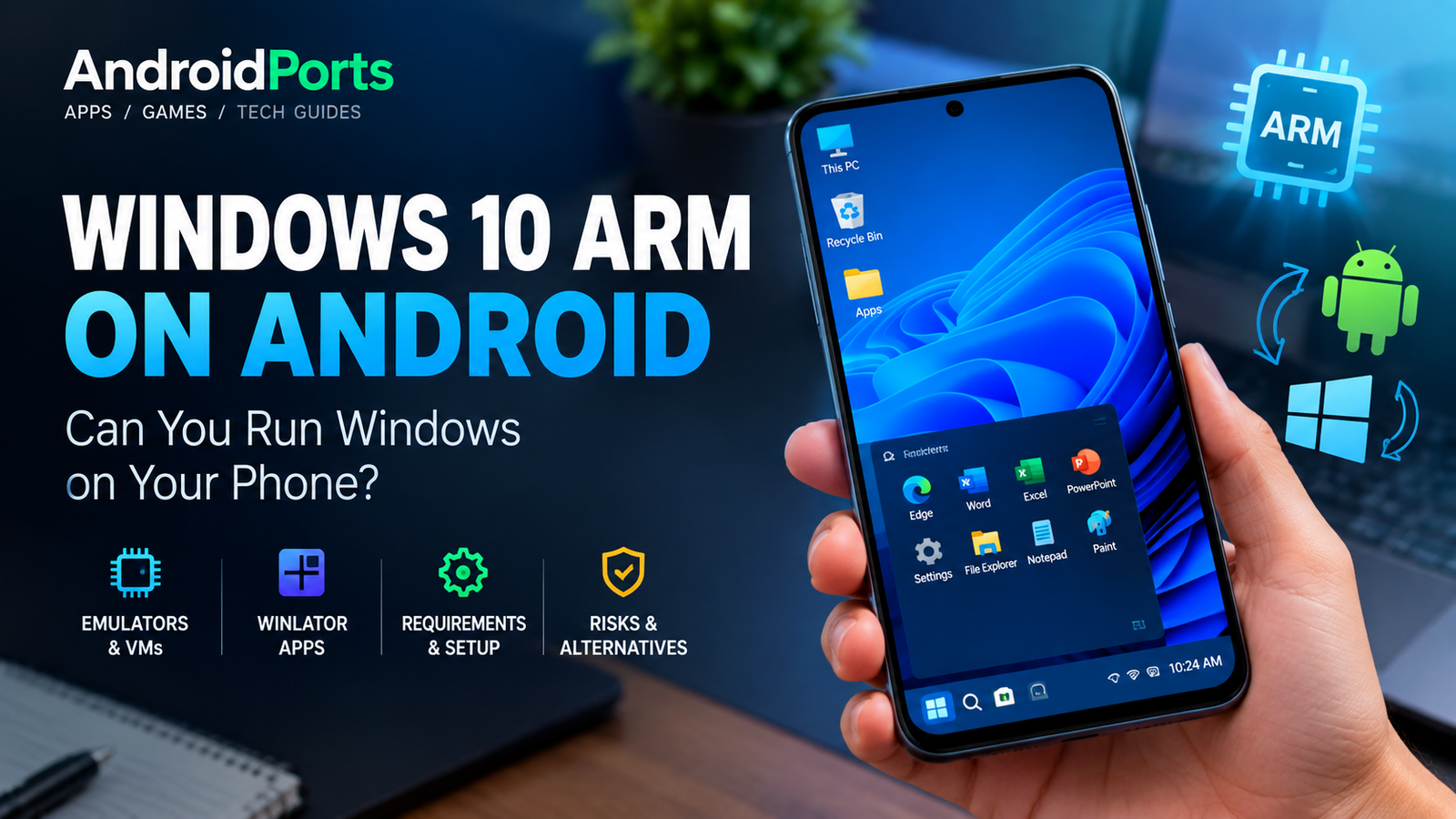
Method 3: Boot Windows Directly (Native Projects)
This is the hard-core route. Some community projects have wrangled custom UEFI and built Windows-on-ARM setups for a handful of Qualcomm Snapdragon phones.
This isn’t “run inside an app”—you’re actually replacing (or at least reloading) the OS. The phone boots straight into Windows.
But this comes with real risk and difficulty. Hardware quirks on each phone mean what works on one model might not work on another, even if they use the same chip.
Why Native Installations Are Hard
Phones aren’t made with Windows drivers in mind. Best case, you’ll get Windows running but then discover half your hardware is busted:
– Camera
– Fingerprint sensors
– GPS or cellular
– Wi-Fi/Bluetooth
– Audio
– Graphics
– Touchscreen
– Power management
One bad flash or wrong file can brick your device, especially if you haven’t backed up first.
Windows 10 ARM on Android: What Do You Need?
There’s no “recommended specs” page for this—it depends on device and project. But a few things always help:
– 64-bit ARM processor (Snapdragon or similar)
– 8GB+ RAM for virtualization and multitasking
– Fast storage (slow chips make everything worse)
– Unlocked bootloader, often needed for real Windows
– An active community—if no one’s tinkered with your device, you’ll struggle
You Absolutely Cannot Install Windows 10 ARM as an APK
This trips people up. Windows 10 ARM isn’t an APK you can sideload from Google Play. It’s an operating system. If you see a “Windows 10 ARM APK” or an easy one-tap installer, it’s almost certainly fake or a scam—stay away.
Windows 10 ARM ISO Download
Microsoft still provides ARM ISOs for Windows 11, but not for all devices and not for just anyone. Be careful where you download Windows 10 ARM images—plenty of sketchy sites claim to have them.
Support for Windows 10 ended in October 2025. Extended Security Updates are around till October 2027 for some cases, but honestly, Windows 11 ARM makes more sense for new projects now.
Windows 10 ARM vs Windows 11 ARM on Android
The main difference nowadays is support. Windows 10 lost mainstream support in 2025, so Windows 11 ARM is the current platform moving forward.
Performance: What Should You Expect?
Even if you pull this off, your Android phone won’t feel like a fast new Windows laptop.
– Native boot has the most potential CPU performance, but usually stumbles over missing drivers.
– Virtual machines are a lot slower, especially for graphics-heavy programs.
– Winlator can be smoother when you just want to run lightweight apps, but it’s still hit-or-miss.
Can You Actually Play Windows Games on Android with These Methods?
Sometimes, but it’s a stretch. Older, simple games are more likely to run via compatibility layers. Big, new titles almost never work well, and even if they launch, performance will be rough.
Don’t expect your phone to become a gaming powerhouse.
Is Any of This Safe?
The software itself isn’t “dangerous,” but the installation process can wreck your phone if you’re careless. Risks include:
– Bricking your phone from failed flashes or bad partitions
– Losing all your data
– Losing key hardware (camera, touchscreen, etc.)
– Boot loops or unbootable devices
– Losing Android entirely
Don’t try this on your main device. Always backup. If you just want to dabble, use a spare phone.
Stick to your main device only for safe, non-flashy stuff like Winlator or remote desktop to a true PC. Flashing firmware and unlocking bootloaders is asking for trouble on your daily phone with all your banking and 2FA codes.
Which methods are best for you?
Depends on what you want:
– Want to mess with real Windows on ARM? Try a VM via QEMU.
– Only need to run Windows software? Winlator is easier.
– Chasing the dream of a native Windows phone? Dive into a community project, but make sure you’re ready for headaches.
– Need proper, stable Windows for work or gaming? Remote desktop from your phone to a real PC is usually the smarter call.
FAQ Highlights
Can you run Windows 10 ARM on just any Android phone?
Not at all. It’s strictly for certain devices, usually with lots of community help.
Is there a real Windows 10 ARM APK?
No! Ignore any “APK” offers—it’s not legit.
Does Winlator install Windows 10?
Nope. It just lets you run some Windows apps.
Can you run Windows 10 ARM without root?
Sometimes, if you stick to app compatibility layers. Native and VM installs often need root or unlocked bootloaders.
Which Android phones work?
Mostly Snapdragons with open source/community support. Always do your research first.
Is Windows 10 still supported?
Standard support is over. Only some extended updates remain.
Is Windows 11 ARM better for new projects?
Yes, if you can run it, because it’s the current platform with ongoing support.
Final Thoughts
Running Windows 10 ARM on Android isn’t impossible, but it’s not just about downloading and installing an app. You’re playing with the intersection of ARM hardware, Windows weirdness, emulation, mods, and a lot of trial and error.
For most people who just want a Windows app, Winlator’s plenty. If you’re really curious about running full Windows, try QEMU. Native installations are only for true hobbyists, and even then, be ready to break things along the way.
Remember: always check if your exact phone is supported before you unlock or flash anything. And if you’re starting from scratch in 2026, you may as well give Windows 11 ARM64 a shot instead.
Leave a Comment