Discover 7 hidden Android features most users miss, Private Space, Circle to Search, Live Caption, and more, plus how to turn each one on.
7 Hidden Android Features Most Users Don’t Know Exist and How to Use Them in 2026
Most people use their phone pretty much the same way they did five years back, calls, texts, a handful of apps, and that’s about it. Meanwhile, Android quietly packed itself with tools that fix real, everyday annoyances, all buried inside settings menus nobody ever bothers opening. This list digs into seven genuinely hidden Android features that actually change how a phone gets used day to day, not the same tired split screen tip that gets repeated on every single blog out there. Here’s a real look at some Android tips and tricks actually worth trying this year.
Why These Features Stay Buried
Google tucks a lot of genuinely useful tools inside settings submenus that take several taps just to find, let alone remember they exist afterwards. Manufacturers pile their own layers on top too, so the same feature might sit somewhere completely different on a Samsung phone compared to a Pixel. That’s basically the whole reason hidden Android features stay hidden in the first place. Not because they’re rare or experimental, just because nobody goes looking without a specific reason to.
Quick Reference Table
| Feature | Where to Find It | What It Does |
| Private Space | Settings > Security and Privacy | Creates a locked, separate space for sensitive apps |
| Circle to Search | Long press home button or gesture without switching apps | Search anything on screen |
| Notification History | Settings > Notifications > Notification History | Recovers dismissed notifications |
| App Hibernation | Settings > Apps > Unused Apps | Freezes unused apps to save battery and protect privacy |
| Live Caption | Settings > Accessibility > Live Caption | Auto-generates captions for any audio playing |
| QR Code WiFi Sharing | WiFi settings > tap network > Share | Shares WiFi access without revealing the password |
| Private DNS | Settings > Network > Private DNS | Encrypts DNS traffic for better privacy and speed |
Locking Away Sensitive Apps With Private Space
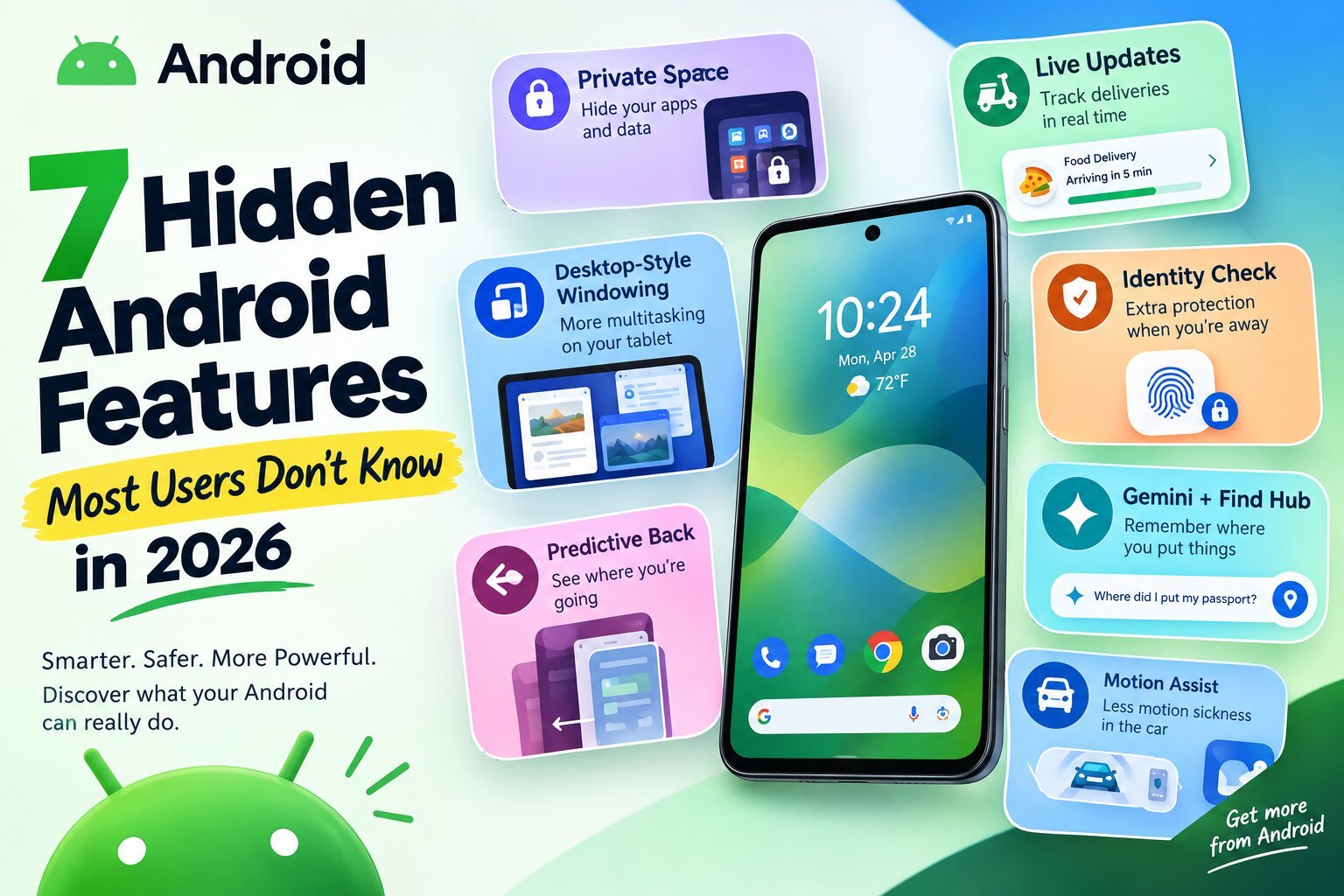
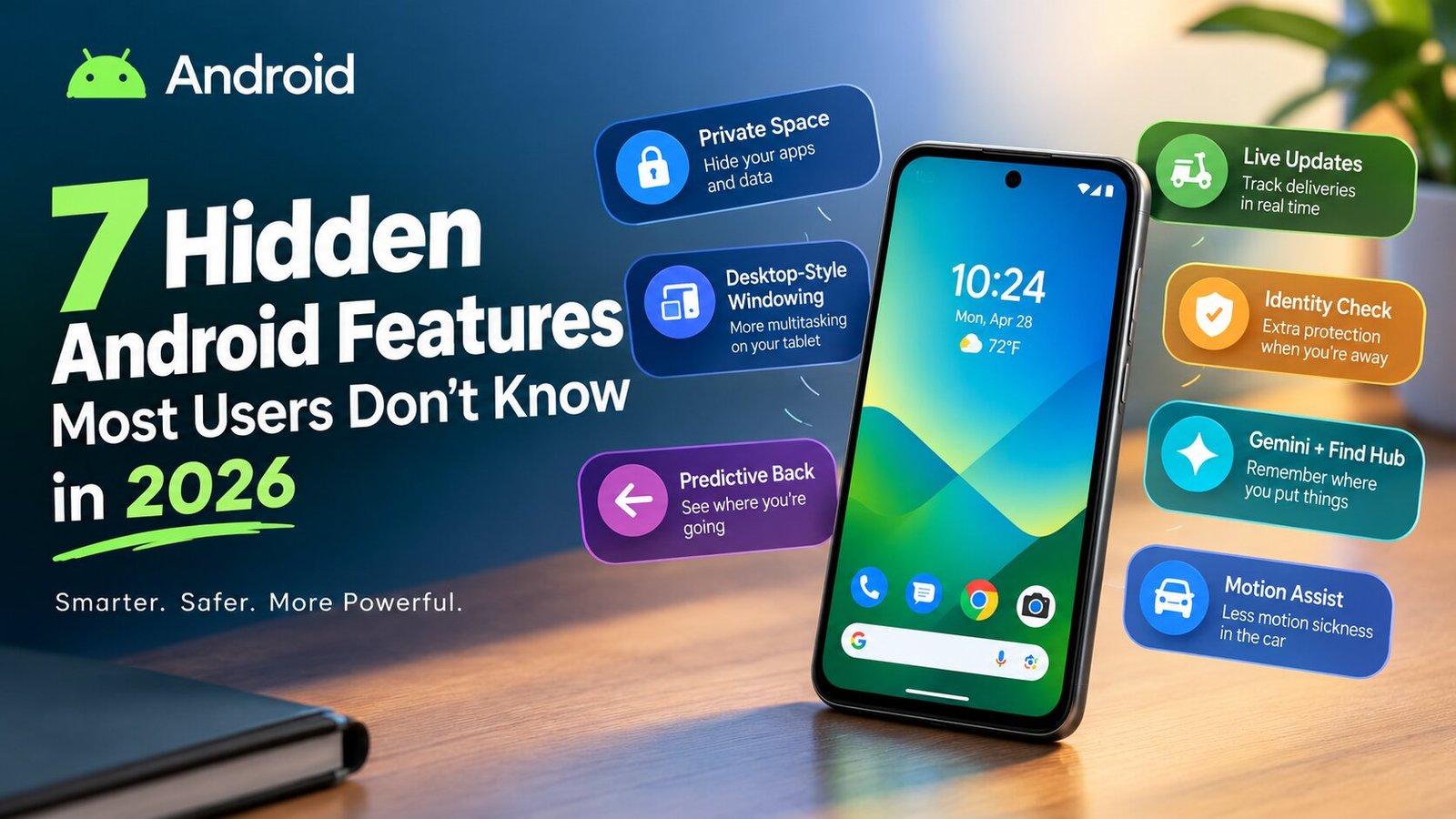
Private Space is genuinely one of the better Android hidden features to show up in recent updates, and almost nobody’s talking about it. It builds a completely separate, PIN-locked section of the phone where specific apps get installed and hidden from the regular app drawer entirely. Banking apps, private messaging, anything that shouldn’t be sitting out in plain sight if someone else picks up the phone, all of it can live inside this locked space instead.
Setting it up only takes a few minutes. Head to Settings, then Security and Privacy, then Private Space. Once it’s running, those apps just don’t show up anywhere else on the phone until someone unlocks that space with its own separate PIN or fingerprint.
Searching Anything on Screen Without Switching Apps
Circle to Search is one of the smarter recent additions to Android, and it fixes an annoyance most people just learned to live with without questioning. Instead of screenshotting something, opening a browser, then typing out some rough description, this feature lets anyone circle, scribble, or tap directly on whatever’s on screen, a product, a place, text inside a photo, and pull up instant search results without ever leaving the app that’s already open.
Works by long-pressing the home button or navigation bar on supported phones, then drawing around whatever needs identifying. For anyone constantly bouncing between apps just to look something up, this alone cuts out a surprising number of steps over the course of a day.
Recovering Notifications That Got Swiped Too Fast
Everyone’s dismissed a notification by accident before actually reading it, usually while unlocking the phone in a rush. Notification History quietly fixes that exact problem, and it’s one of those useful Android features that feels completely obvious once found, yet stays totally invisible until then.
Turning it on means going to Settings, then Notifications, then Notification History, flipping the toggle on. From there, every notification gets logged for a set stretch of time, even the ones swiped away by mistake, so nothing important actually vanishes for good.
Letting the Phone Manage Itself With App Hibernation
Unused apps just sitting there in the background still drain battery and hold onto permissions nobody even remembers granting them. App Hibernation automatically freezes apps that haven’t been opened in a while, pulling back their permissions and stopping background activity without needing to uninstall anything by hand.
This mostly runs on its own, but it can also be triggered manually through Settings, then Apps, then Unused Apps. For anyone whose phone is full of apps downloaded once and never touched again, this is one of the more genuinely useful Android features you should know about, quietly protecting battery life and privacy at the same time without asking for any input.
Getting Real-Time Captions for Anything Playing
Live Caption deserves a lot more attention than it actually gets. It generates real-time captions for whatever audio’s playing on the phone, videos, voice notes, even podcasts, and it’s all processed right there on the device rather than sent off to some server somewhere. Matters for privacy, sure, but also just for usability in loud rooms or for anyone who reads faster than they process audio.
It’s tucked inside Settings, then Accessibility, then Live Caption. Once switched on, a small caption box pops up automatically the moment any audio starts, no extra app or setup needed beyond flipping that one toggle.
Sharing WiFi and Browsing Safer Without Extra Apps
QR Code WiFi Sharing fixes a small but constant annoyance, reciting some oddly formatted WiFi password out loud to a guest standing in the kitchen. Tapping into WiFi settings and selecting the connected network brings up a QR code a guest’s phone can just scan directly, connecting instantly without ever actually seeing the password itself.
Private DNS rounds this whole list out nicely too, encrypting DNS traffic between the phone and the internet, which improves both privacy and, in a lot of cases, browsing speed as well. Sits inside Settings, then Network, then Private DNS. Setting a trusted provider here takes under a minute but adds a real layer of protection most people never bother switching on.
Wrapping This Up
Android’s quietly built itself into one of the more flexible operating systems around, but most of that flexibility stays locked behind menus nobody ever explores without some reason to go looking. From Private Space guarding sensitive apps to Circle to Search cutting out a bunch of repetitive steps, these hidden Android features genuinely change how a phone feels day to day once they’re actually switched on. Spending ten minutes digging through settings just once is a small trade for tools that keep quietly working in the background every day after that.
FAQs
1. How do I turn on Notification History?
Settings, then Notifications, then Notification History, flip it on. Dismissed notifications get saved for a while instead of just vanishing.
2. What’s Private Space in Android actually for?
Locks away sensitive apps, banking, private messaging, that kind of thing, in a separate section of the phone. Hidden from the app drawer, needs its own PIN to open.
3. Does Circle to Search work on any Android phone?
No, only supported devices. Usually a long press on the home button or nav bar gets it going, worth checking if a specific phone actually has it first.
4. Is App Hibernation safe to just leave on?
Yeah, totally. Just freezes apps nobody’s opened in a while, pulls back permissions, stops background stuff. Nothing gets deleted, opens right back up like normal whenever needed.
5. Why bother turning on Private DNS?
Encrypts DNS traffic, adds privacy, sometimes even speeds up browsing. Takes under a minute, Settings, then Network, then Private DNS.
Leave a Comment