Discover the best Android battery saving tips to improve battery life, reduce power consumption, and keep your phone running longer. Read this complete guide from AndroidPorts.
Android Battery Saving Tips: How to Make Your Phone Last All Day
Let’s face it, battery life can make or break your day with an Android phone. Whether you’re binge-watching videos, joining Zoom calls, gaming, or just scrolling through social feeds, you need your phone to keep up. No one likes scrambling for a charger when you’re only halfway through the day.
Most new Android phones—whether you’re using Samsung, Google, OnePlus, Xiaomi, Motorola, Nothing, OPPO, realme, or vivo—come with beefy batteries and smart power features. Still, the way you use your phone plays a big role in how long the battery actually lasts.

This guide from AndroidPorts.com lays out down-to-earth tips that work across most Android phones. No extra apps needed, no geek skills required.
Why Does My Android Battery Drain So Fast?
Lots of things can chew through your battery:
Screen brightness turned up high
Apps always running in the background
GPS and location services
Weak mobile signal
High screen refresh rates (those 120Hz displays look nice, but…)
Bluetooth and Wi-Fi left on all the time
Serious gaming sessions
Worn-out batteries
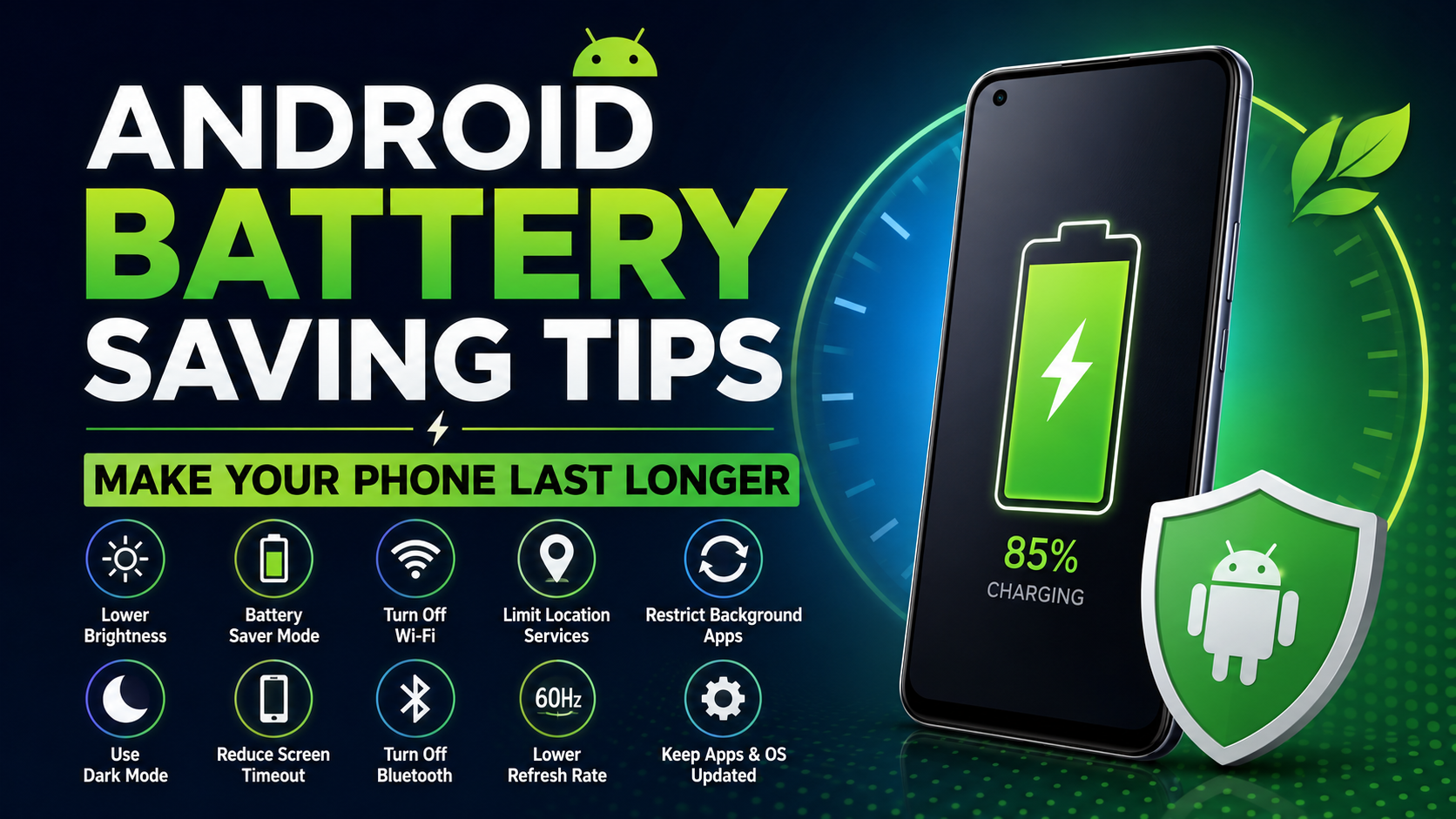
Spotting what’s draining your battery is the first step to fixing it.
1. Lower Your Screen Brightness
Your screen’s probably the single biggest power hog. Instead of blasting brightness all day, use adaptive brightness, or just keep it lower when you’re inside. If your phone has an extra bright mode, keep it off unless you really need it. AMOLED screens also look fantastic with dark wallpapers—and use less power, too.
2. Turn on Battery Saver Mode
Every Android phone comes with some kind of battery saver. Just flip it on when you’re running low. It cuts back on background activity, dials down the graphics, and slows down updates. You can set it to kick in by itself when you drop to 20% or 15%.
3. Shorten Your Screen Timeout
If your screen stays on long after you’ve stopped using your phone, that’s wasted battery. Change “Screen Timeout” to 15 or 30 seconds. Even just setting it to a minute can help.
4. Limit Background Apps
Some apps refuse to take a break, especially social, navigation, and cloud storage apps. Head to Settings → Battery → Background Usage to see what’s draining the most juice. No need for “RAM cleaner” apps—they usually don’t help and can even make things worse.
5. Turn Off Unused Connections
Bluetooth, NFC, Wi-Fi, mobile hotspot, nearby scanning—turn off anything you aren’t using. These features quietly eat away at your battery by hunting for connections.
6. Use Dark Mode
Dark Mode isn’t just about looks. On OLED and AMOLED screens, darker themes help your battery last longer. It’s easier on your eyes in low light, too.
7. Keep Everything Updated
App and OS updates don’t just add features—they fix bugs that can mess with battery life. Only update from the official app store or your device settings to stay safe.
8. Cut Back Location Services
GPS burns through power in no time. Set apps to only use location “While Using the App,” and disable precise location if you don’t need it. Remember to turn off GPS when you’re done with directions.
9. Tone Down Your Refresh Rate
120Hz, 144Hz screens look amazing, but they eat up battery. Switch to 60Hz if you want your phone to last longer, especially on busy days.
10. Keep an Eye on Battery Usage
Android actually shows you which apps are using the most battery. Go to Settings → Battery → Battery Usage. Look for any surprises, and either restrict or uninstall apps that seem greedy.
11. Don’t Let Your Phone Overheat
Heat kills batteries fast. Don’t leave your phone in a hot car, charge it under your pillow, or play heavy games while charging. A cooler phone is a happier phone.
12. Charge Smartly
You don’t need to stay at 100% all the time. Use good-quality chargers and cables, avoid letting your phone completely die, and unplug when practical once you’re charged. Lots of phones now have battery health features; turn those on if you can.
13. Clear Out Unused Apps
If you’re not using an app, get rid of it. Old apps can keep syncing, sending notifications, or updating. Deleting them frees up space and the battery.
14. Pare Down Widgets
Every widget—weather, news, stocks—refreshes in the background. Stick to only the ones you actually look at.
15. Restart Every Now and Then
A simple restart works wonders. It closes stuck apps, clears out glitches, and keeps things smooth. Once every few days is enough.
Extra Tips for Better Battery Health
Switch on Adaptive Battery if your phone has it.
Turn off notifications you don’t care about.
Disable the Always-On Display if you rarely check it.
Always keep your software updated.
Stick to original or certified accessories.
Download apps from trusted places only.
Even these little adjustments go a long way toward a longer-lasting battery.
Conclusion
There’s more to good battery life than a big battery number. Most of it comes down to daily habits—things like lowering brightness, shutting off unused features, and managing apps. Doesn’t matter if you own a Samsung Galaxy, Pixel, OnePlus, Xiaomi, Nothing, or Motorola—these tricks help you stay powered up longer.
Looking for more tips, reviews, or Android tricks? Visit AndroidPorts.com. We’re all about helping you get the most out of your Android.
FAQs
1. What drains my battery fastest?
Your screen uses the most power. After that: gaming, GPS, background apps, bad signal, and streaming.
2. Does Dark Mode really help?
Yes—especially if you have an OLED or AMOLED screen. Black backgrounds use less juice.
3. Is it safe to use Battery Saver all the time?
Totally. Battery Saver mainly limits background stuff. Use it whenever you need extra battery life.
4. Should I close apps after using them?
Not unless they’re misbehaving. Android usually handles this well; focus on restricting battery-hungry background apps.
5. Does fast charging hurt my battery?
Most newer phones have safeguards, and using a proper charger is key. Stick to the manufacturer’s charger for best results.
6. How often should I charge my phone?
Plug it in whenever it’s convenient. Avoid running all the way down to zero if you can.
7. Which brands do battery saving best?
Pretty much all the well-known brands—Samsung, Google, OnePlus, Xiaomi, Motorola, Nothing, OPPO, realme, vivo—offer solid battery features.
8. Should I bother with third-party battery saver apps?
Honestly, Android’s built-in tools are usually enough. Third-party apps don’t add much—and can sometimes make things worse.
9. How do I check which app is using the most battery?
Head to Settings → Battery → Battery Usage.
10. Where do I find more Android tips?
Simple—just head over to AndroidPorts.com for more guides, reviews, and optimization how-tos.
Leave a Comment